Cut Settings Editor
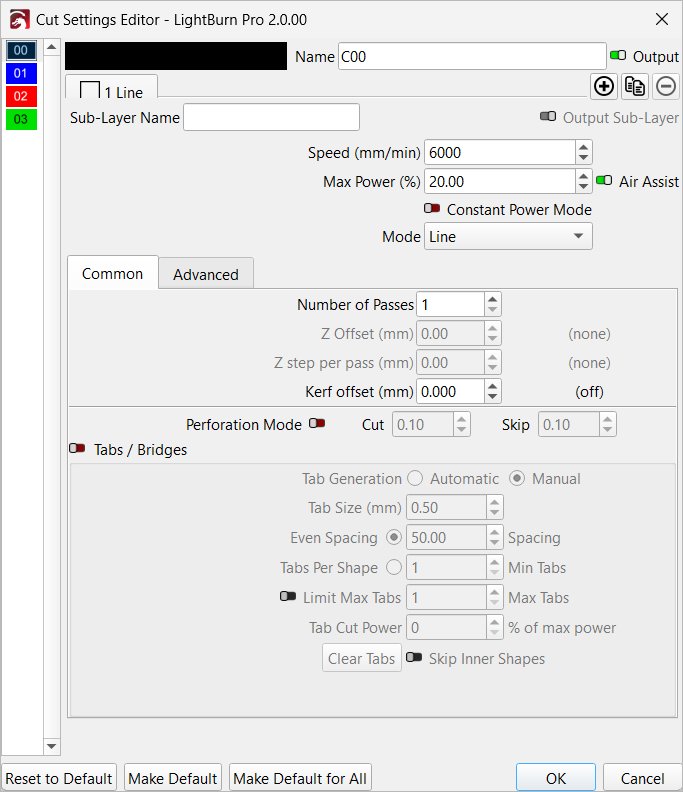
The Cut Settings Editor is where you adjust all settings for the layers in your project.
The settings presented in the Cut Settings Editor vary depending on the type of laser you're working with, and the Layer Mode the selected layer is set to.
In all variations of the Cut Settings Editor, the most essential settings — including Speed, Power, and Mode — are displayed at the top of the window. More specialized options follow below, split into two tabs — Common and Advanced.
Access the Cut Settings Editor by double-clicking any entry in the Cuts / Layers Window or Material Library.
The window will open to settings for the entry you double-clicked — click any other layer in the column along the left side to access the settings for that layer.
Note
You can adjust a narrower set of critical settings directly in the Cuts / Layers Window, instead of opening the Cut Settings Editor.
The settings presented in the Cut Settings Editor depend on the selected Layer Mode and the type of laser you're working with. Select an option below to learn more about different groups of settings.
-
Main / Shared Settings
Settings shared by almost all types of lasers and Layer Modes, including critical settings like Speed and Power.
-
Line Mode
Tells your laser to trace a path along the outlines of geometry in your project.
-
Fill Mode
Tells your laser to etch or engrave parallel lines inside the bounds of closed shapes in your project.
-
Offset Fill Mode
Tells your laser to fill closed shapes with lines that follow the contour of the outer shape.
-
Image Mode
Works similarly to Fill Mode, but applies additional special settings to adjust output based on the pixels in your image.
-
Galvo-Specific Settings
Special settings that are available for users with Galvo style lasers only.
-
Sub-Layers
A tool for setting up and applying multiple cut/engraving settings to the same geometry or layers in your project.
-
Default Layer Settings
Built-in or custom-created settings stored on a per-layer basis, that you can reset to at any time.
Note
Some options in the Cut Settings Editor are hidden if you have Beginner Mode enabled.