Double-Engraved Areas
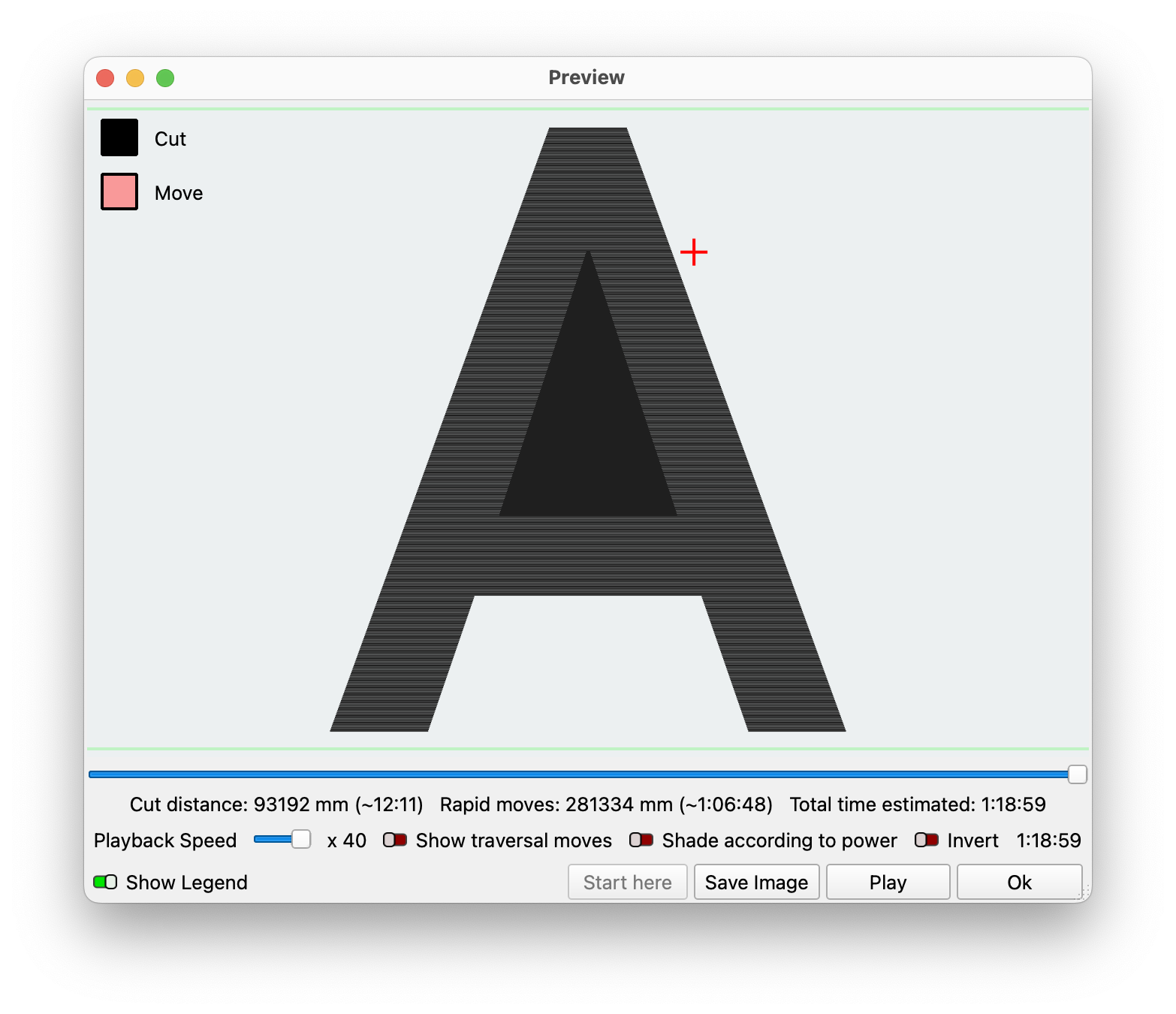
Description
Areas of your graphics that you intend to engrave only once — or not at all — are instead engraved twice.
Solution
Graphics set to Fill Mode engrave differently depending on whether they are set to the same or different layers.
-
If they are set to the same layer, and one shape is inside the other, the area between both outlines is engraved.
-
If they are set to the same layer and they're partially overlapping, but neither contains the other, the area where they overlap is not engraved.
-
If they are set to different layers, both shapes are engraved in their entirety, regardless of whether one contains the other, or they're overlapping.
-
See Fill Mode and How to Invert a Vector Engraving for more information on these concepts.
Click here for examples fully and partially overlapping shapes set to the same or different layers
-
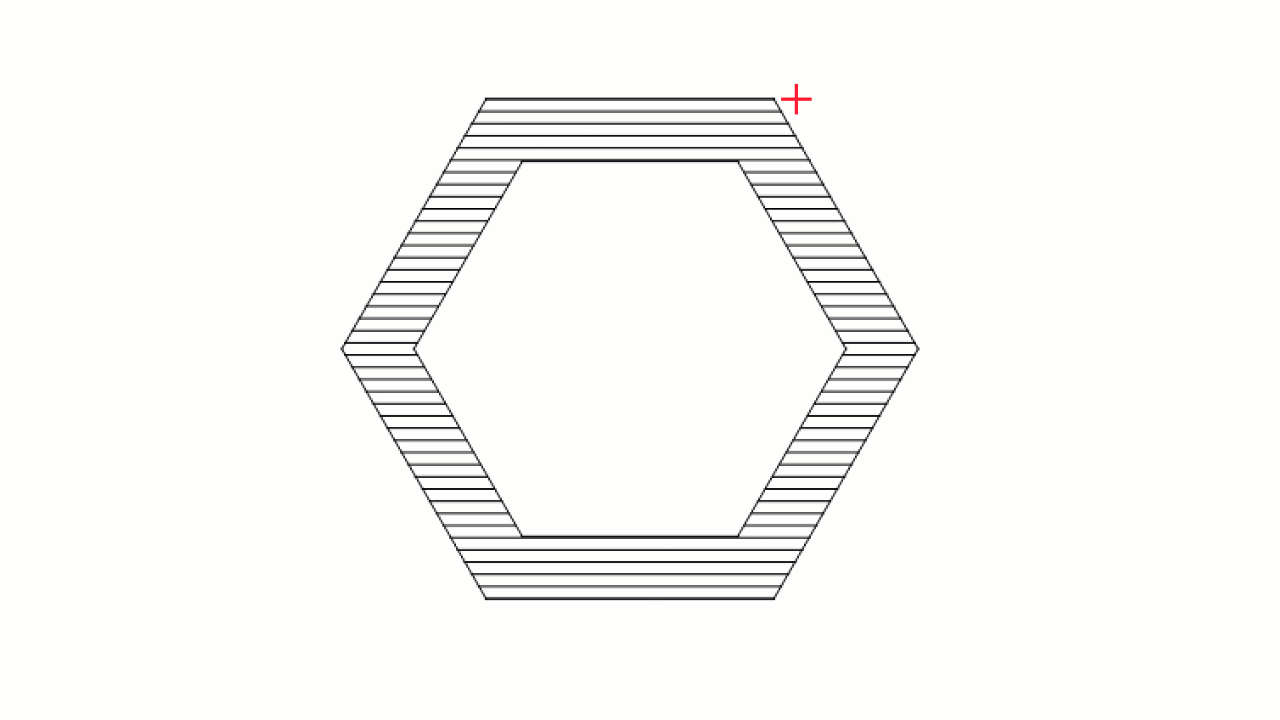
Fully overlapping shapes set to the same layer -
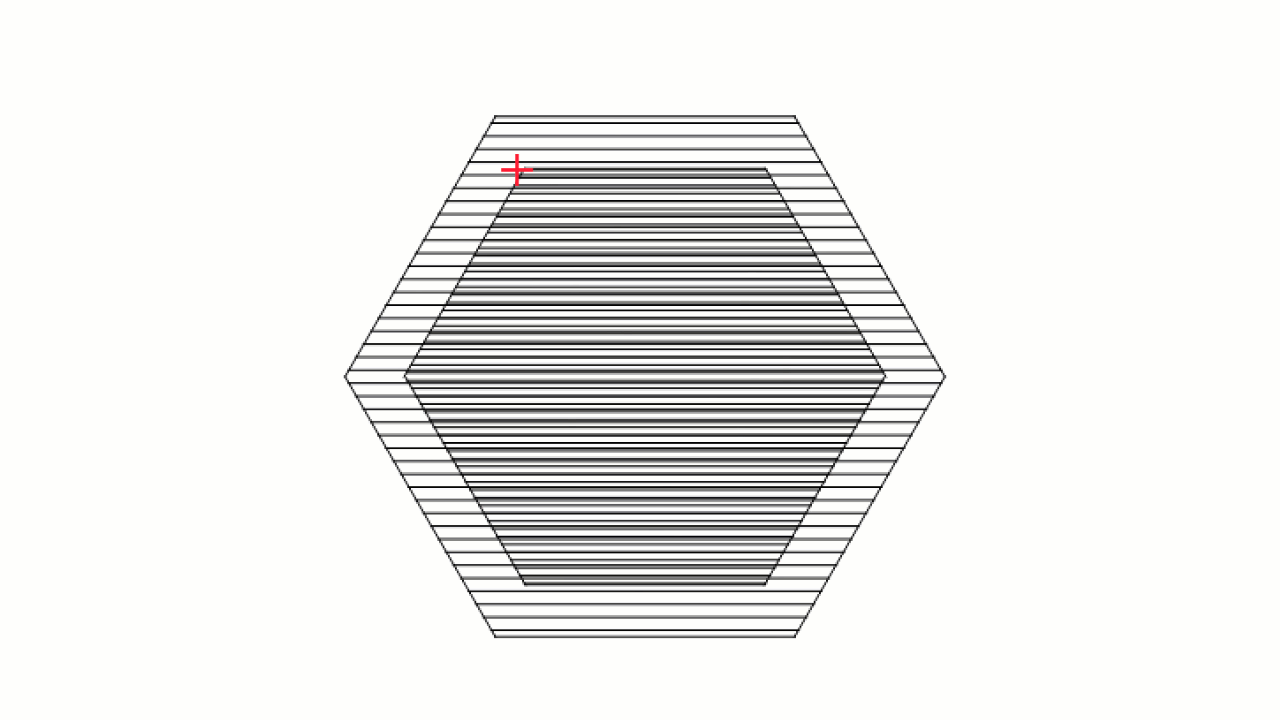
Fully overlapping shapes set to different layers -
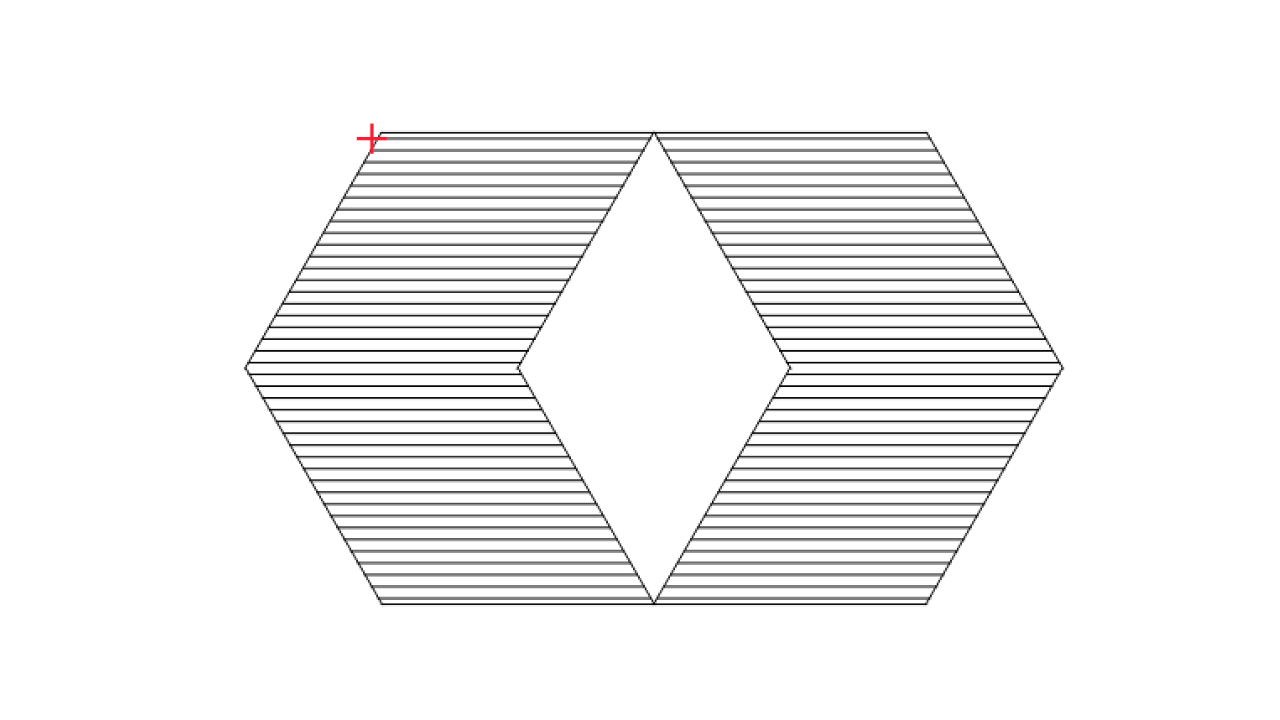
Partially overlapping shapes set to the same layer -
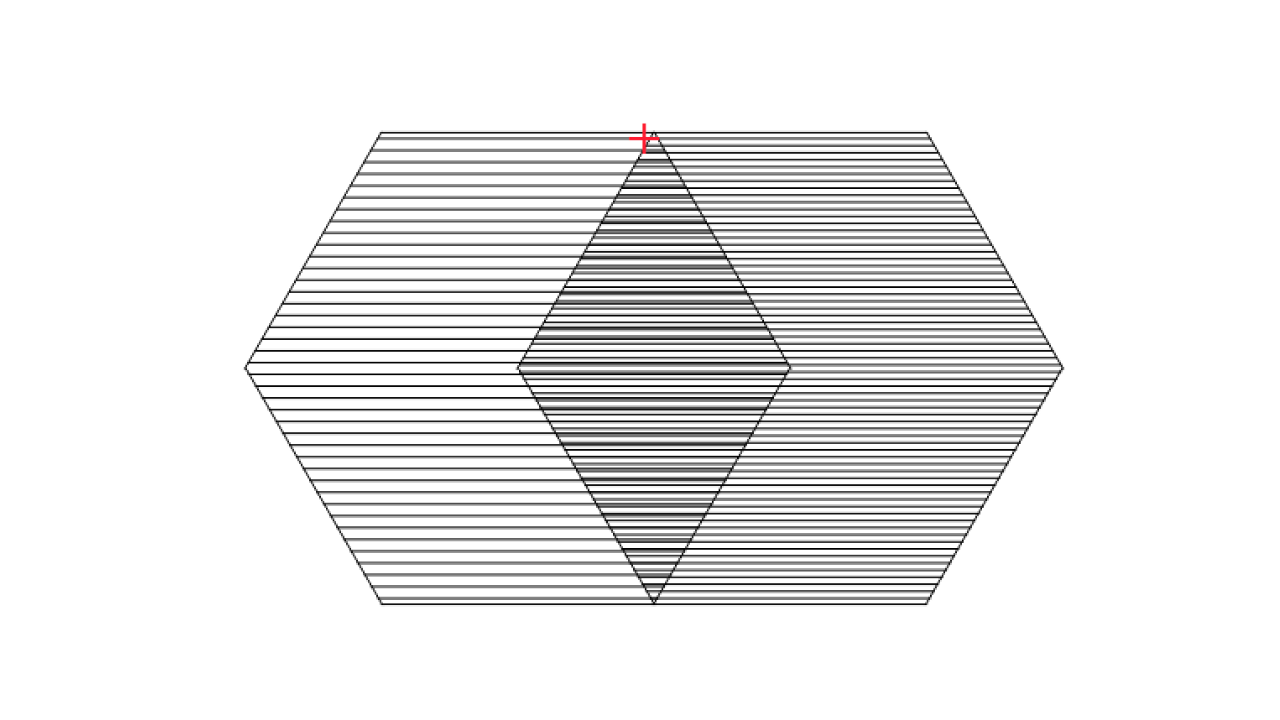
Partially overlapping shapes set to different layers
-
Try setting overlapping shapes to the same layer to see if the new result in the Preview window matches your expectation.
-
If you are using a Filled View Style, try switching to Wireframe mode to make sure there aren't any unwanted graphics hidden behind other graphics in your design. Delete them if necessary.