Default Layer Settings
Cut settings are normally pre-filled with the last settings used for a given layer, but LightBurn has an option to automatically reset to either universal settings or your own customized defaults each time you start a new project.
You can also reload custom or universal defaults at any time in the Cut Settings Editor.
Use the Material Library to save a wider range of settings
Material Libraries are also available for saving and reusing cut settings, and are recommended for users who need to store and reapply many distinct, frequently-used settings.
Note
See Main / Shared Settings for information on applying essential settings like Speed and Power.
See Additional Options for information on specialized settings not covered on this page.
Setting Defaults
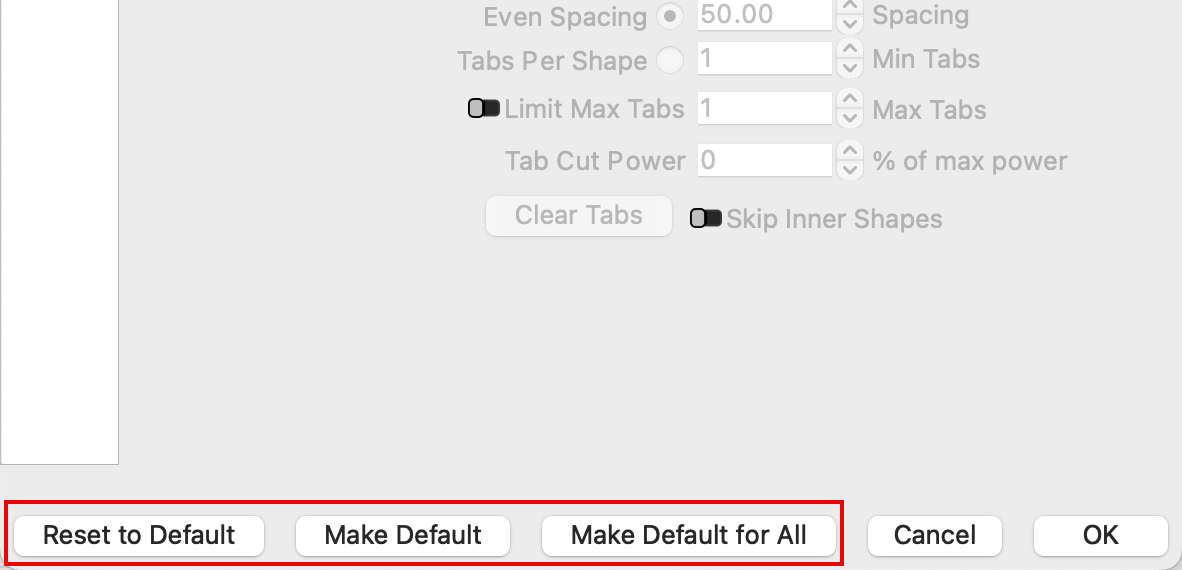
At the bottom of the Cut Settings Editor, there are three buttons to manage default layer settings.
Make Default: remember the settings for this palette color. Whatever your current settings are will become the default for this color. Default settings are saved separately for each device profile.
Reset to Default: reset the layer to the default settings. Hold Shift while clicking Reset to Default to reset to LightBurn's universal defaults.
Make Default for All: your current layer settings will become the default for all palette colors.
Always pay attention to units of distance and time when entering Speed settings
When entering Speed values recommended by your laser's manufacturer or other LightBurn users, make sure to use the same units of distance and time as those from the recommendation, or to convert the values to your preferred units.
A given number of millimeters per second is much faster than that same number in millimeters per minute. Mixing up units can lead to reduction in power output due to unexpectedly high speeds, or excessive power output — and even fire — due to unexpectedly slow speeds.
Change your Control Units in the Dimensions / Units tab of the Device Settings window. LightBurn automatically converts any existing values when you switch between units.
LightBurn's Universal Defaults
The universal default layer is set to Line Mode, at 6000 mm/min (100 mm/sec) speed and 20% power, with no advanced options enabled.
Layers switched to Fill, Offset Fill, or Image mode after having been restored to default will be set to the same speed and power as above, a Line Interval of .100, and to Fill all shapes at once. The default dithering mode of Image layers is Stucki.
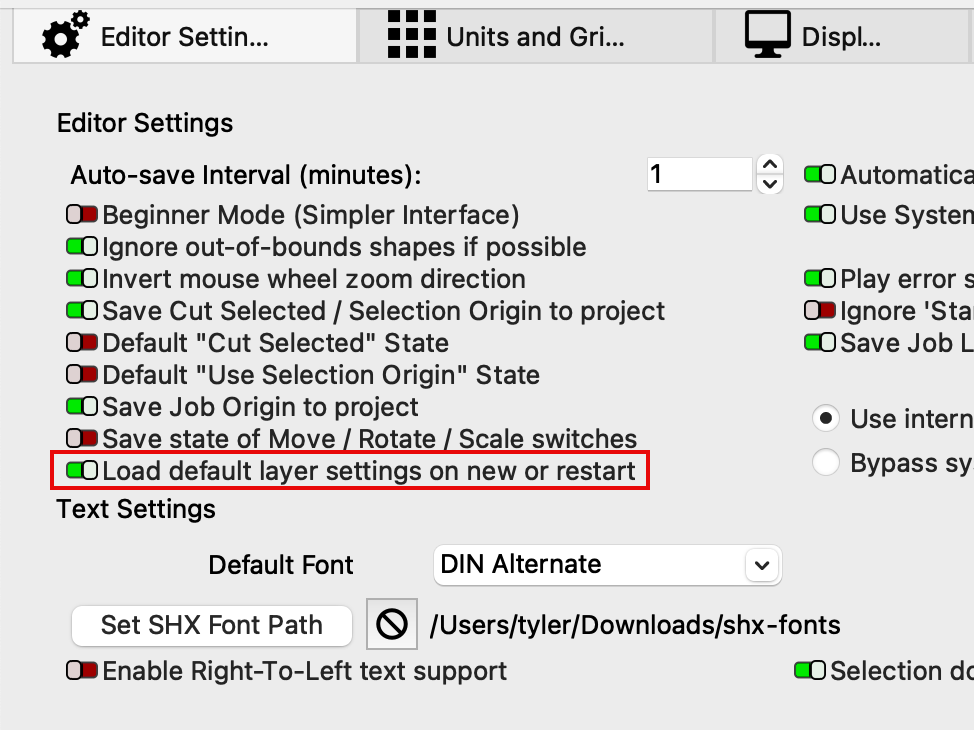
Load Default Layer Settings on New or Restart
To automatically load defaults instead, enable Load default layer settings on new or restart in the Editor Settings tab of the Settings window.
Additional Options
The settings presented in the Cut Settings Editor depend on the selected Layer Mode and the type of laser you're working with. Select an option below to learn more about different groups of settings.
-
Main / Shared Settings
Settings shared by almost all types of lasers and Layer Modes, including critical settings like Speed and Power.
-
Line Mode
Tells your laser to trace a path along the outlines of geometry in your project.
-
Fill Mode
Tells your laser to etch or engrave parallel lines inside the bounds of closed shapes in your project.
-
Offset Fill Mode
Tells your laser to fill closed shapes with lines that follow the contour of the outer shape.
-
Image Mode
Works similarly to Fill Mode, but applies additional special settings to adjust output based on the pixels in your image.
-
Galvo-Specific Settings
Special settings that are available for users with Galvo style lasers only.
-
Sub-Layers
A tool for setting up and applying multiple cut/engraving settings to the same geometry or layers in your project.
-
Default Layer Settings
Built-in or custom-created settings stored on a per-layer basis, that you can reset to at any time.
Note
Some options in the Cut Settings Editor are hidden if you have Beginner Mode enabled.